
After you purchase credits that create your Admin Account. Follow these steps to create accounts for members of your team or your clients.
1. On the site Navigation bar, click on the “Login” button.

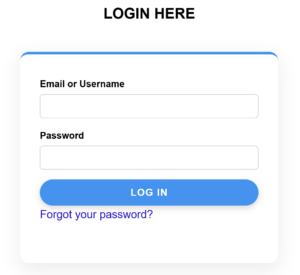
2. That will take you to the Login page. Enter your email address and password that was sent to you, then click on the “Login” button.
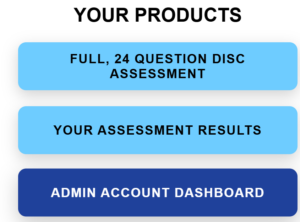
3. After logging in, you’ll land on the Member Home page. Then, click on “Admin Account Dashboard.”
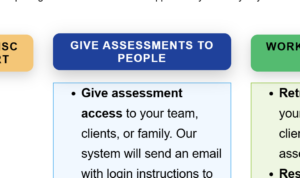
4. Click on the “Give Assessments to People” button.
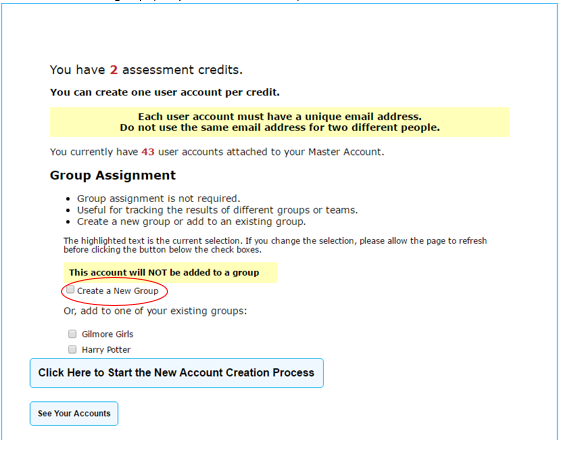
5. This will open a pop-up window. You can add a Group Name to help you keep track of segments of your team or select one of your existing groups. If you don’t select a group, this account will be created without a group. (But you can add one later.)
6. Enter the user’s name and email address. When you’re finished, click on “Click Here to Create Access to The DISC Assessment.”
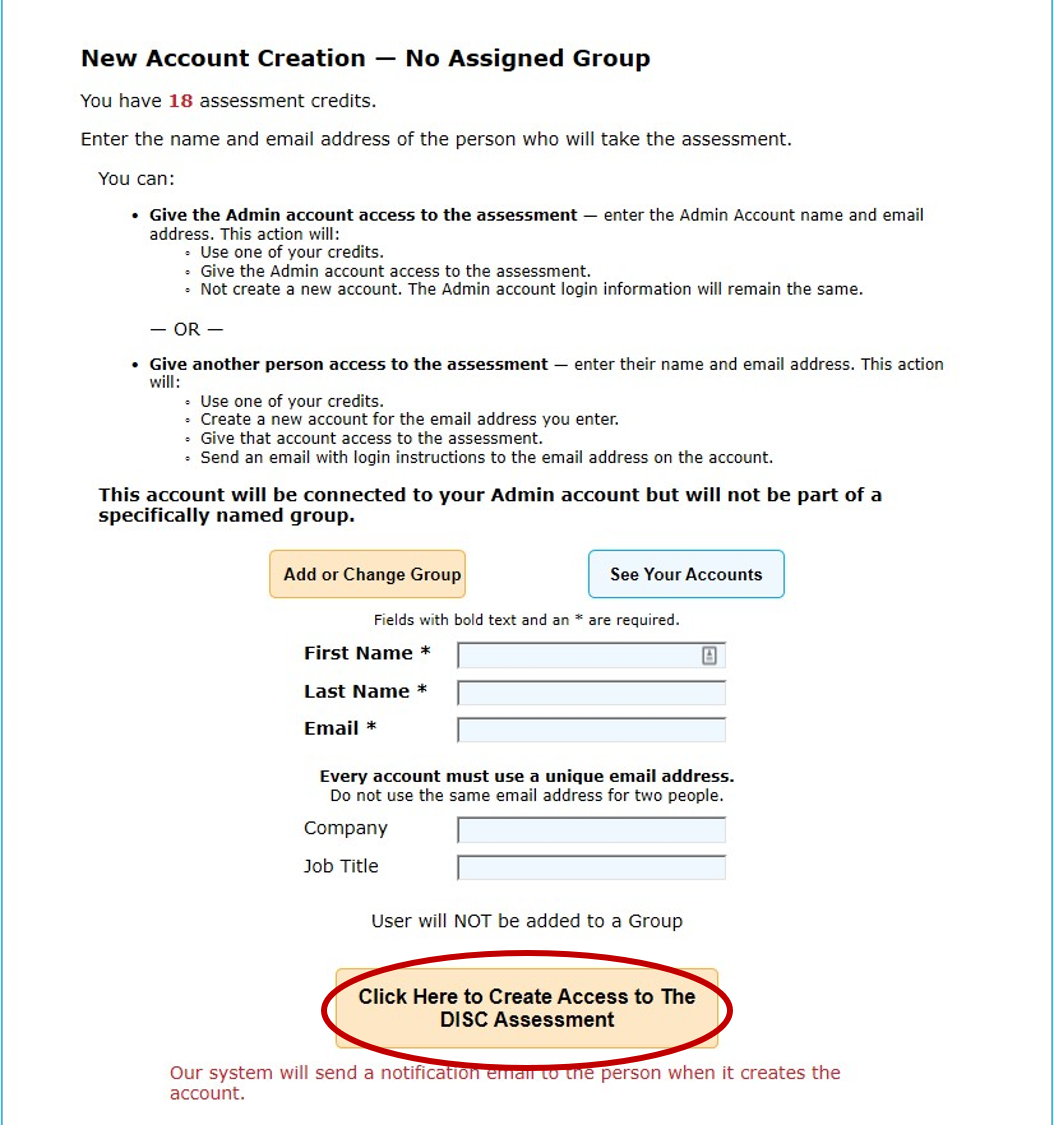
7. You can continue this process until you have used all of your credits. The system will create the account and give you the opportunity to continue creating accounts until you have used all of your credits. Our system will automatically create and send an email to the person for whom you created an account. The email will contain their login information as well as letting them know it came from you.